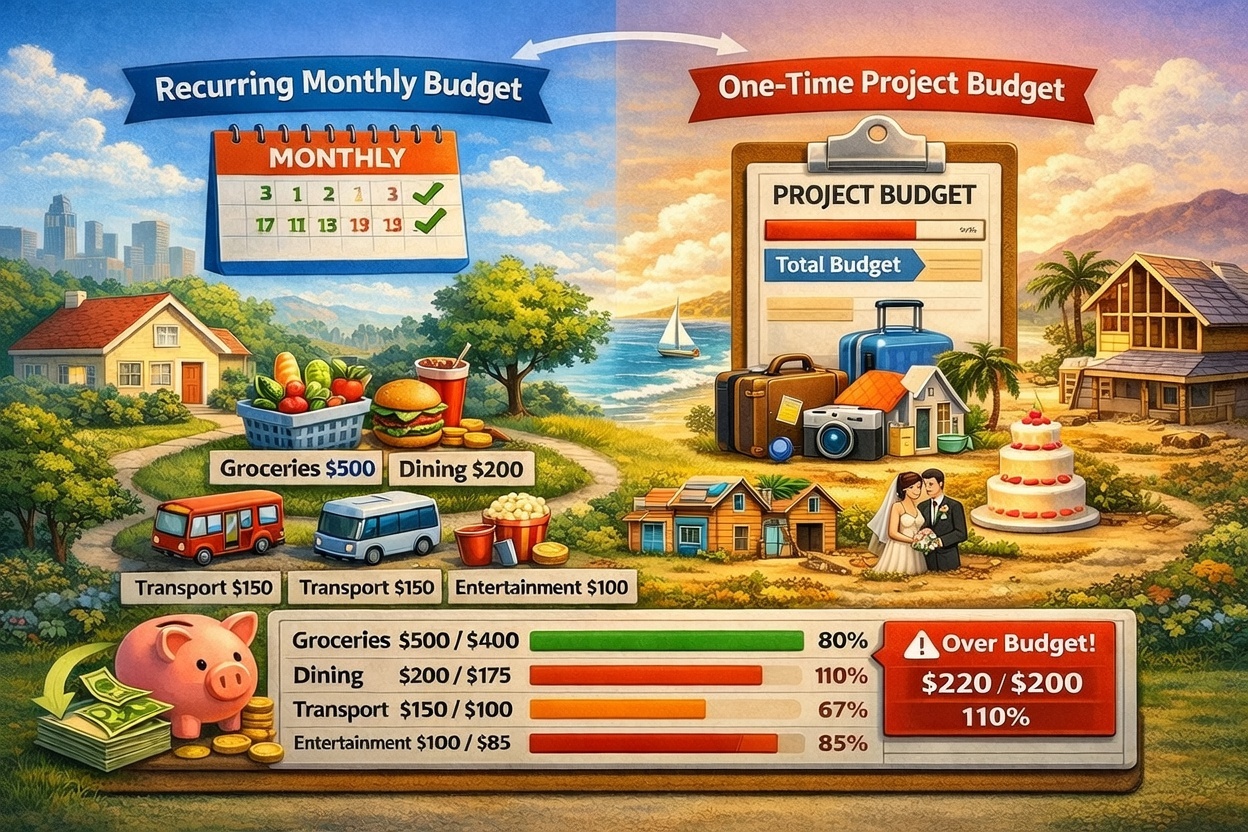
Most budgets fail because they're too vague. Setting one overall spending limit for the entire month doesn't tell you where the money is actually going. That's why Spensy lets you set budgets at the category level — so you know exactly which spending areas are on track and which ones aren't.
Two Budget Modes: Pick What Fits Your Life
Spensy supports two distinct budget modes, and you choose which one applies to each workspace:
1. Recurring Monthly Budgets
This is the most common setup. You set a monthly spending limit for your workspace and optionally set individual caps for each category. At the end of the month, the budget resets automatically and a new tracking period begins.
Recurring budgets are ideal for personal finance — your income is roughly the same each month, so your spending limits should be too. You set it once and Spensy tracks it every month.
2. One-Time Project Budgets
Sometimes you need to budget for a specific goal: a vacation, a home renovation, a wedding, or a business project. One-time budgets let you set a total spending cap that doesn't reset — it tracks your cumulative spending until the project is done.
This mode works well for shared workspaces where a team is collaborating on a specific initiative with a fixed budget.
Per-Category Budget Limits
This is where Spensy's budgeting gets practical. Instead of one lump-sum budget, you can set individual limits for each spending category:
- Groceries — $500/month
- Dining & Takeaway — $200/month
- Transportation — $150/month
- Entertainment — $100/month
- Shopping — $75/month
These are just examples — you set whatever amounts make sense for your situation. The point is that per-category limits give you granular control. You'll know immediately if you're overspending on dining before it eats into your grocery budget.
Over-Budget Alerts
Spensy tracks your spending against each budget limit in real time. For every category, you can see:
- Amount spent — how much you've spent so far this period
- Percentage used — a clear progress indicator showing how much of the budget is consumed
- Over-budget warnings — when you exceed a category limit, Spensy flags it immediately so you can adjust
This replaces the guesswork of "am I spending too much on food this month?" with a concrete answer backed by your actual receipt and transaction data.
Workspace-Level Budgets for Teams
If you're managing expenses for a team or a business, budgets work at the workspace level. Create a business workspace, invite your team (with roles like Owner, Admin, Contributor, or Viewer), and set budgets that everyone contributes to.
All receipts uploaded by team members count toward the workspace budget, and everyone with the right permissions can see the current spending status. This makes shared expense tracking transparent without needing spreadsheets or manual tallying.
How AI Makes Budgeting Easier
Budgets only work if your expense data is accurate — and that's where Spensy's AI receipt scanning comes in. Every receipt you upload gets automatically categorized, so spending flows into the right budget category without manual sorting.
If you upload a grocery receipt, the items go to your Groceries budget. If you scan a restaurant bill, it hits Dining & Takeaway. You don't have to think about which category each expense belongs to — the AI handles it, and your budget dashboard stays up to date automatically.
Start With a Simple Budget
You don't need to set limits for every category on day one. Start with 2-3 categories where you suspect you're overspending — usually Groceries, Dining, and Shopping. Track those for a month, see the data, then expand from there.
Spensy's 14-day free trial gives you enough time to upload your receipts, set up budgets, and see whether the per-category approach works for you.